How to Connect Your RMM to Claude or ChatGPT (OAuth or API Key)
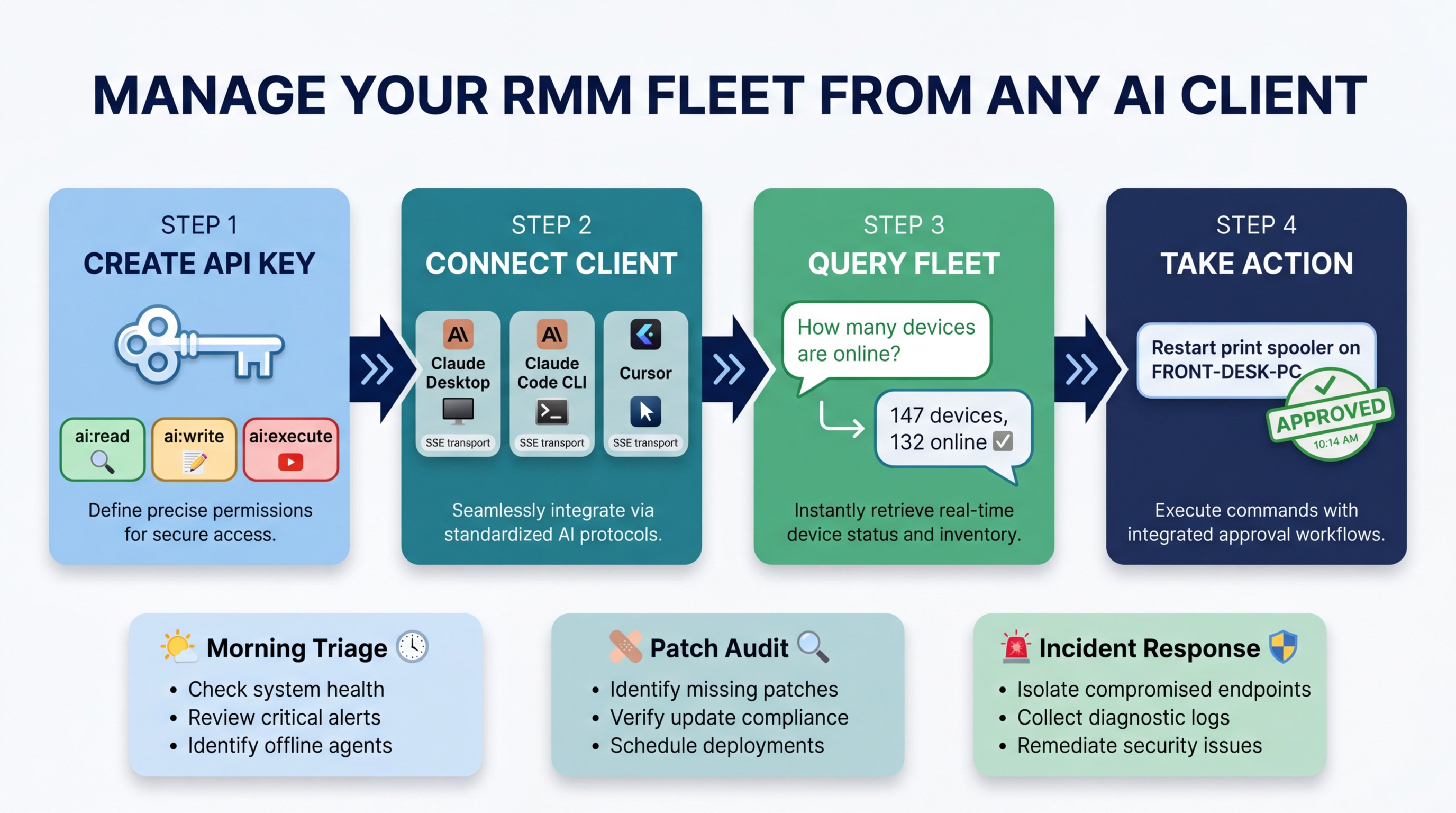
You already spend half your day inside an AI assistant. Drafting emails, summarizing tickets, writing scripts. What if that same assistant could also query your device fleet, triage overnight alerts, and restart a stuck service on a client workstation, all without you switching to another browser tab?
With Breeze’s MCP server, that is exactly what happens. Claude.ai, ChatGPT, Claude Desktop, Claude Code, and Cursor become full RMM clients. You type a question in natural language, the AI calls Breeze tools over MCP, and you get real data back from your live fleet. No dashboard required.
What changed: Claude.ai and ChatGPT now connect to MCP servers over OAuth 2.1: no pasted API keys, no config files. You sign in once and revoke with one click. This post covers both paths: OAuth for the hosted clients, and API keys for the desktop / CLI / IDE clients that still use them.
What Is MCP (and Why It Matters Here)
MCP, or Model Context Protocol, is the open standard that lets AI clients call external tools. Think of it as the bridge between “AI that talks” and “AI that does things.” When you connect Breeze to an MCP-capable client, the AI gains access to every Breeze tool: device queries, alert management, command execution, metric analysis, and more.
The key distinction: this is not a chatbot embedded in a web UI. This is your existing AI workflow tool gaining direct access to your RMM platform. You stay in the environment you already work in.
Two Ways to Connect
| Client | Connection method | What you paste in |
|---|---|---|
| Claude.ai (web) | OAuth 2.1 | Just the MCP URL |
| ChatGPT (web / desktop) | OAuth 2.1 | Just the MCP URL |
| Claude Desktop | API key | URL + X-API-Key header |
| Claude Code CLI | API key | URL + X-API-Key header |
| Cursor | API key | URL + X-API-Key header in JSON |
| Windsurf and other MCP clients | API key (most) | URL + X-API-Key header |
If your assistant of choice is Claude.ai or ChatGPT, jump to Option A: OAuth. If you live in the terminal, an IDE, or Claude Desktop, jump to Option B: API key.
Prerequisites
- A running Breeze RMM instance reachable from the machine (or hosted client) you’ll connect from. Cloud-hosted Breeze tenants are reachable by default. Self-hosters need their API endpoint accessible over HTTPS from the AI client.
- For self-hosters using OAuth: the
MCP_OAUTH_ENABLEDenvironment variable on the Breeze API server must be set. Cloud tenants have this on by default. - One of the supported clients above.
No plugins to install, no extensions, no middleware.
Option A: OAuth 2.1 for Claude.ai and ChatGPT
This is the easiest path. There is no token to copy, no config file to edit, and revoking access is one click in Breeze.
Step 1: Add Breeze as a Connector
In Claude.ai, open Settings → Connectors and choose Add custom connector (or “Add MCP server” depending on plan). In ChatGPT, open Settings → Connectors (or Developer Mode → Connectors) and choose Add.
Paste your Breeze MCP URL:
https://your-breeze-api.example.com/api/v1/mcp(Or https://api.breezermm.com/api/v1/mcp if you’re on the hosted product.)
Step 2: Sign In
Claude or ChatGPT will open Breeze in a popup and ask you to sign in. If you’re already logged in, you’ll skip straight to the consent screen.
You’ll see exactly what the AI client is asking for (which tenant, which tools, which scopes) and you approve or deny. Behind the scenes, this is standard OAuth 2.1 with Dynamic Client Registration and PKCE, so the AI client never sees your password and never holds a long-lived secret.
Step 3: Pick Your Scopes
The consent screen surfaces the same three scopes you’d use on an API key:
| Scope | What It Unlocks | Risk Level |
|---|---|---|
ai:read | Tier 1 tools only: query devices, view alerts, analyze metrics, pull reports | Low, read-only |
ai:write | Tier 1 + Tier 2 tools: alert acknowledgment, low-risk write operations | Medium, can modify alert state |
ai:execute | All tiers including Tier 3: command execution, script runs, service management | High, can modify devices |
Start with ai:read. Approve the grant, run a few queries, and verify the connection. You can re-authorize with broader scopes later, and Breeze treats it as a new grant.
Step 4: Revoke Anytime
In Breeze, Settings → AI Access → OAuth Grants lists every connected AI client by name, last-used time, and scopes. Click Revoke on any grant and the assistant loses access immediately. Sibling access tokens are invalidated on the spot, not at expiry. That’s the main reason to prefer OAuth: revocation is instant and per-assistant, not per-key.
Option B: API Key for Claude Desktop, Claude Code, Cursor
If you’re connecting from a desktop app, a terminal, or an IDE, you’ll use an API key. This is also the right path for self-hosters who haven’t enabled OAuth yet.
Step 1: Create an API Key
Navigate to Settings → API Keys in your Breeze admin panel. Click Create New Key.
Select scopes (ai:read, ai:write, or ai:execute, same table as above). Start with ai:read while you verify everything works.
Breeze generates a token that starts with brz_. Copy it immediately, because it is only shown once. Store it somewhere secure. This key authenticates every MCP tool call, and anyone who has it can perform any action the scopes allow.
Step 2: Connect Your Client
Pick the option that matches your workflow.
Claude Desktop
Open a terminal and run:
claude mcp add breeze-rmm \
  --transport sse \
  --url https://your-breeze-api.example.com/api/v1/mcp/sse \
  --header "X-API-Key: brz_your_key_here"
What each flag does:
breeze-rmm: the name for this MCP connection (shown in the Claude Desktop tool picker)--transport sse: uses Server-Sent Events for streaming communication--url: your Breeze API server’s MCP endpoint--header: passes your API key on every request
Restart Claude Desktop. Breeze tools appear in the tool picker when you start a new conversation.
Claude Code CLI
Same command, same flags:
claude mcp add breeze-rmm \
  --transport sse \
  --url https://your-breeze-api.example.com/api/v1/mcp/sse \
  --header "X-API-Key: brz_your_key_here"
The advantage of Claude Code for RMM work: you can chain natural language fleet queries with shell commands, scripts, and file operations in the same session. Pull device data, pipe it into a script, output a report, all without leaving the terminal.
Cursor
Open Cursor Settings → MCP (or edit your MCP config directly). Add:
{
  "mcpServers": {
    "breeze-rmm": {
      "url": "https://your-breeze-api.example.com/api/v1/mcp/sse",
      "transport": "sse",
      "headers": {
        "X-API-Key": "brz_your_key_here"
      }
    }
  }
}
Cursor is the ideal setup for MSP engineers who also write automation scripts. You’re already in an IDE, so now you can query live fleet data inline while building PowerShell scripts, Python automations, or Breeze API integrations.
Your First Query
Whichever path you used, open your AI client and try a simple read-only interaction:
“How many devices are currently online in my fleet?”
Here’s what happens behind the scenes:
- The AI determines it needs fleet data and selects the
list_devicestool. - It sends the tool call to Breeze over the MCP connection.
- Breeze validates the token (OAuth access token or API key), checks the
ai:readscope, enforces tenant isolation, and queries the device database. - The results stream back to the AI client.
- The AI formats the data into a readable summary.
You get something like:
“Your fleet has 147 devices total. 132 are currently online, 12 are offline, and 3 are in a pending state. The offline devices are primarily at the Contoso - Branch Office site.”
No dashboards opened. No filters applied. No clicking.
Try a second query:
“Show me all critical alerts from the last 24 hours”
The AI calls manage_alerts with severity and time filters. Breeze returns the data, and the AI presents a table of alert titles, affected devices, timestamps, and severities. Instant triage without leaving your current window.
Taking Action
Read-only queries are useful, but the real power comes when you upgrade to write and execute scopes. For OAuth, re-authorize the connector with broader scopes. For API keys, update the key in Settings → API Keys.
Tier 2: Low-Risk Writes (Auto-Executes)
“Acknowledge all low-severity alerts older than 48 hours”
The AI calls manage_alerts with action: 'acknowledge', filtered by severity and age. This is a Tier 2 operation, so it auto-executes immediately with full audit logging. No confirmation dialog.
Tier 3: High-Impact Actions (Requires Confirmation)
“Restart the Windows Update service on ACME-PC-07”
The AI calls manage_services with action: 'restart' targeting a specific device. This is Tier 3. The AI client surfaces a confirmation dialog before execution. In Claude.ai and Claude Desktop you see the tool name, target device, and parameters and approve or deny; in Claude Code and ChatGPT the tool call is shown and you confirm.
How the Tier System Works
Breeze classifies every MCP tool call into risk tiers:
- Tier 1 (Read): auto-runs, no confirmation needed. All query and analysis tools.
- Tier 2 (Low-Risk Write): auto-runs with full audit logging. Alert management, status updates.
- Tier 3 (High-Impact): requires confirmation in the AI client before executing. Command execution, service management, script runs.
The token scope is the first gate. If your OAuth grant or API key only has ai:read, the AI cannot even attempt a Tier 2 or Tier 3 call. Breeze rejects it before the risk engine evaluates it. Scopes are hard boundaries, not suggestions.
Real Workflow Examples
Three practical workflows that MSP technicians use daily with this setup.
Morning Triage From Claude.ai
You open Claude.ai at 8 AM with a coffee. Type:
“Summarize overnight alerts, group by severity, and show which devices need attention first”
The AI calls manage_alerts to pull all alerts since your last session, then calls list_devices to cross-reference device status. It returns a structured triage report:
Critical (2): ACME-DC-01 disk at 97% (alert at 3:12 AM), Contoso-SQL-02 service ‘MSSQLSERVER’ stopped (alert at 4:47 AM).
High (5): Three devices failed patch deployment overnight. Two devices showing sustained high CPU since 2 AM.
Low (11): Standard threshold alerts: disk cleanup recommended on 6 devices, 5 certificate expiration warnings (30+ days out).
Recommended priority: ACME-DC-01 disk is the most urgent. A domain controller at 97% disk will cause replication failures. Contoso-SQL-02 service stop is second; the production database may be unreachable.
You have a prioritized action plan before your first meeting. The entire interaction took twenty seconds.
Patch Audit From Cursor
You are writing a PowerShell automation script in Cursor and need to know the current state of Windows updates across a tenant. Without switching windows:
“What’s the Windows update compliance rate across the Contoso tenant?”
The AI queries Breeze, and you get real-time data inline:
“Contoso tenant: 89 devices. 74 (83%) are fully patched. 12 devices are missing 1-2 patches (mostly KB5034441, released 3 days ago). 3 devices have failed patch installations requiring manual review.”
You use those exact numbers in the script you are writing. Live fleet data feeds directly into automation development, with no context switching.
Incident Response From ChatGPT
A client calls about a server that seems unresponsive. You type into ChatGPT:
“Check if ACME-DC-01 is responding, show recent alerts, and pull the last 50 lines of the event log”
The AI executes multiple tool calls in sequence:
get_device_details: confirms the device is reporting as online but with elevated response times.manage_alerts: surfaces three critical alerts: disk space, failed DNS resolution, and Active Directory replication failure.execute_command: pulls the last 50 event log entries (Tier 3, so you confirm the tool call first).
The AI correlates the data:
“ACME-DC-01 is online but degraded. The root cause appears to be disk space. At 97% full, NTDS.dit cannot expand, which is causing AD replication failures, which in turn is causing DNS resolution failures. Recommend immediate disk cleanup followed by a forced AD replication cycle.”
Three tool calls, one coherent diagnosis. The alternative was opening the Breeze dashboard, navigating to the device, checking three different tabs, opening a remote session, running Get-EventLog manually, and correlating everything yourself. MCP compressed that into a single natural language request.
Security and Governance
Connecting an external AI client to your RMM raises legitimate security questions. Here is how Breeze addresses them.
Every MCP tool call goes through the same risk engine as the web UI. There is no separate code path for MCP requests. The same tenant isolation, the same input validation, the same audit logging. MCP is an access method, not a privilege escalation.
Token scopes are the first gate. Whether the assistant authenticated via OAuth or an API key, if the token does not have ai:execute, Tier 3 tools are blocked at the authentication layer, before the risk engine even evaluates the request. Scopes are enforced server-side. The AI client cannot override them.
OAuth revocation is immediate. Revoking a grant invalidates sibling access tokens on the spot, so de-authorizing an AI client takes effect without waiting for the access token to expire. Per-grant rate limits also apply.
Rate limits apply per-token. Default limits are 30 SSE connections per minute and 120 messages per minute per token. These are configurable via environment variables (MCP_SSE_RATE_LIMIT_PER_MINUTE, MCP_MESSAGE_RATE_LIMIT_PER_MINUTE). A runaway AI client or a compromised key cannot flood your instance.
All actions are logged in the audit trail. Every tool call, including the input parameters, the OAuth grant or API key ID, the risk tier, and the execution result, is recorded. You can review MCP activity the same way you review web UI activity: through the audit log or by asking the AI itself (“Show me all MCP tool executions from the past 24 hours”).
For production hardening, two additional environment variables tighten the controls:
MCP_EXECUTE_TOOL_ALLOWLIST: restricts which Tier 3 tools are available via MCP. Set it to a comma-separated list of tool names (e.g.,execute_command,manage_services). An empty value in production means all Tier 3 tools are denied by default.MCP_REQUIRE_EXECUTE_ADMIN: when set totrue, Tier 3 tools require theai:execute_adminscope in addition toai:execute. This lets you authorize an assistant to read and manage alerts but block it from running commands, even withai:execute.
OAuth vs. API Key: Which Should You Use?
Both paths hit the same server, the same risk engine, the same audit log. The choice is operational:
| Concern | OAuth (Claude.ai, ChatGPT) | API Key (Desktop, CLI, Cursor) |
|---|---|---|
| Secret to manage | None; refresh tokens rotate automatically | One brz_ key per client, rotate manually |
| Revocation | Instant, per-assistant, sibling tokens killed | Delete the key, all clients using it disconnect |
| Best for | Hosted clients used by humans | Scripts, terminals, IDEs, automation |
| Setup friction | Paste URL, sign in once | Generate key, paste into config |
For day-to-day human use of Claude.ai or ChatGPT, OAuth is the better default. For machine-to-machine automation, headless scripts, or clients that do not support OAuth, API keys are still the right call.
Tips and Gotchas
A few things that will save you time:
Start with read-only scopes and test before upgrading. This is not just a safety recommendation; it is a debugging strategy. If ai:read queries work, you know the connection, authentication, and tenant isolation are all functioning. If a write operation fails later, you can narrow the issue to scope configuration.
MCP tool calls skip the web UI approval flow. In the Breeze web UI, Tier 3 actions trigger an in-app approval dialog. Over MCP, the AI client handles confirmation through its own UX (tool confirmation dialog in Claude.ai / Claude Desktop / ChatGPT; inline confirmation in Claude Code CLI). The approval still happens; it just happens in the client.
If a tool call fails, check scopes first. The most common failure mode is calling a Tier 2 or Tier 3 tool with a read-only token. Breeze returns a clear error, but the AI may not always surface the exact scope mismatch. Check your OAuth grant scopes (or API key scopes) before debugging further.
SSE session limits apply per token. Default is 5 concurrent SSE sessions per token (configurable via MCP_MAX_SSE_SESSIONS_PER_KEY). If you’re connecting from multiple machines or clients with the same API key, you may hit this limit. OAuth grants are per-client by design, so this rarely surfaces there.
Keep your Breeze instance updated. MCP tool definitions evolve as Breeze adds features. Updating Breeze automatically updates the tools available to your AI client. No reconfiguration needed on the client side.
What Comes Next
This tutorial covers the fundamentals: connecting an AI client (OAuth or API key), running queries, and taking action. For deeper dives:
- MCP Server feature page: full feature overview of the MCP integration, including all available tools and transport options
- Configuring Breeze AI: The Self-Hoster’s Guide: every configuration option, including budget management, RBAC mapping, and production lockdown
- What Breeze AI Can Actually Do For Your Help Desk: more workflow examples and a deeper look at the tool tier system
The setup takes a minute. The first time your AI assistant pulls live fleet data and saves you a context switch, you will not go back to tab-hopping between your RMM dashboard and your AI client. They are the same thing now.